

How to Use Google Flights: A Complete Guide
Google Flights
Google Flights is just one of many tools in a travel toolbox, but it’s one I would have a hard time functioning without. If money or time is not an object when booking a flight, then Google Flights may have no value to you. However, if you’re trying to find the best value, the best time, the best alternative airport, or even a location based on all of those things — keep reading.
The Search
There are plenty of third-party websites that let you search for flights and offer several different options in return. None like this though. Let me walk you through it:
Head over to: https://www.google.com/flights
Let’s say you’re flying from NYC to Miami and you know that NYC has three airports (LaGuardia, JFK, and Newark Liberty). With Google Flights, a simple “NYC” in the search box will include all three.

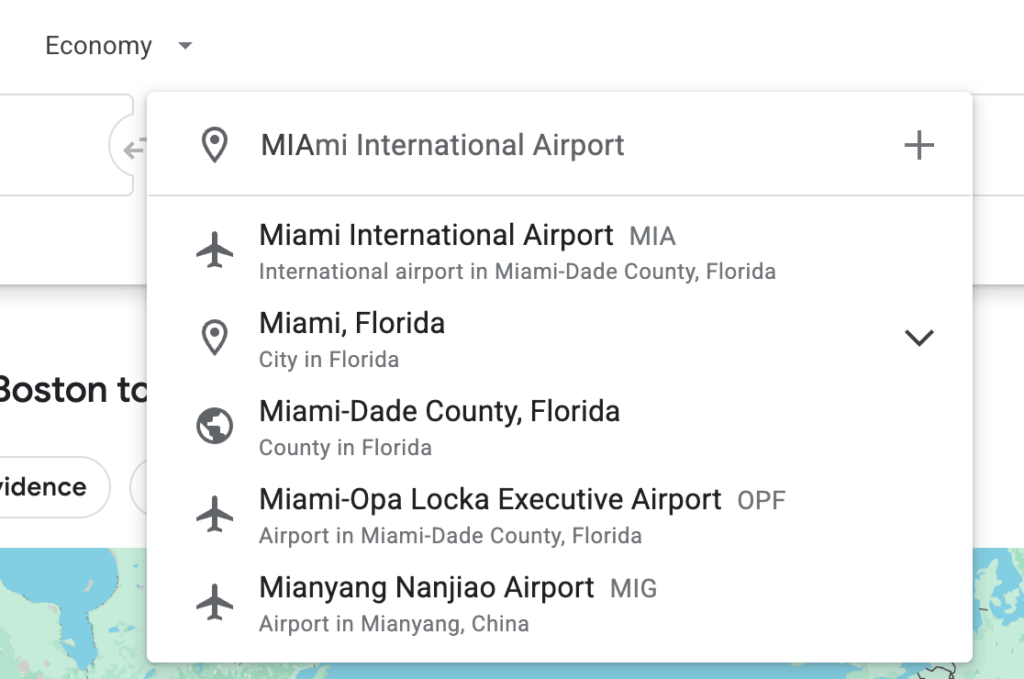
Now on the other end, you start typing “Miami” and notice it expands to show Fort Lauderdale as a nearby option. You click “Miami.”
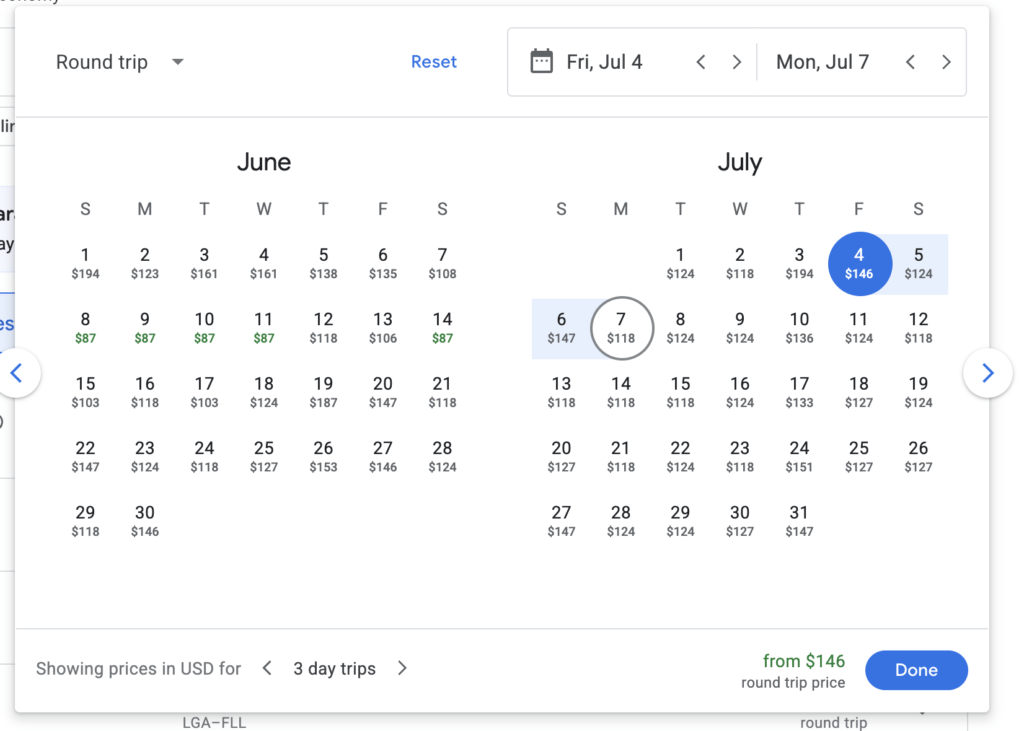
Next, click the calendar icon and start looking at dates. Prices appear immediately. Choose your dates, and the search begins. Before looking down at the results, click the calendar again — notice how it shows different fares based on your departure date. It defaults to the same trip length, but you can adjust that in the bottom left.
The results page shows “Top Flights” first, followed by other options. These other flights might include longer layovers, odd times, or higher fares — but they could be perfect for your needs.
Is that it? Oh no no no. Now it’s time to filter.
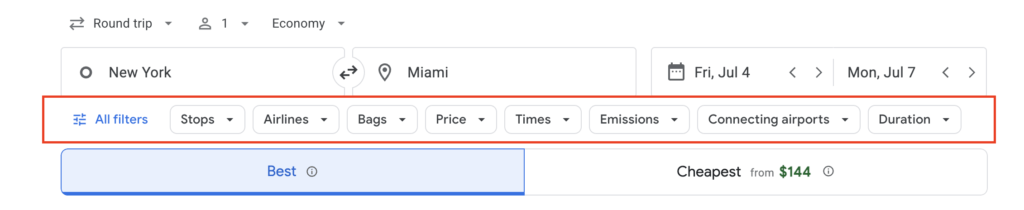
Filtering allows you to narrow the search by time, airline, number of stops, price, or even emissions. You can also exclude options, such as “Exclude American Airlines.”
Not every airline operates with the same fare rules, and Google Flights helps with that too. You’ll often see two small icons next to the price:
- One for carry-ons
- One for checked bags

Once you select your departure flight, you’ll repeat the process for your return. After both are selected, a new page appears showing fare options and what’s included. Scroll down a bit to see if the fare is considered “low,” “typical,” or “high” based on price history.
Depending on the airline, once you select your flights, Google will link you directly to the airline’s site to complete your booking. Occasionally, it may show a third-party site — I don’t recommend booking there. Stick with the airline when possible.
That’s great if you know where and when you’re going. But what if you just want to get away?
Let Google Tell You
Last December, my wife and I wanted to explore the Christmas markets in Europe. We planned to go mid-month and had researched a few places. I navigated to Google Flights, typed “BOS” (Boston) as the departure, and left the arrival airport blank. I entered the dates and clicked Explore destinations.
After a moment, a map of the world appeared — filled with prices. I dragged the screen over to Northern Europe and noticed Copenhagen was significantly cheaper. The screenshot below is from this coming December, but back then, Copenhagen was about $500 less than the other cities we had considered.

We booked it on the spot and had a great time in Denmark.
One exciting new feature when exploring destinations is the filter by Interests. This allows you to search for areas with beaches, museums, skiing, and more.

Google continues to improve this tool, so keep an eye out for new features. It’s not perfect though — here are a few workarounds that can lead to even better results:
💡 Tips & Workarounds
- Search two one-ways: In the NYC to Miami example, once you pick your departure airport, the return defaults to the same. But maybe you fly JFK to MIA, and the best return is FLL to LGA.
- Check more airports manually: Google uses a radius to suggest nearby airports, but sometimes deals pop up just beyond that range. For example, I include West Palm Beach in my Miami searches — it’s close by and connected via train. A quick Google search like “alternative airports near [city]” can help. You can manually type multiple airport codes in Google Flights.
- Expand your departure search: If you’re planning a quick weekend getaway, you might not want to drive four hours. But for a last-minute trip to Paris for a wedding? Maybe. Last year, I helped a friend in Las Vegas search for flights to Lisbon. Vegas flights were $1,800 last minute. I added LAX to the search and found fares for $900. She could either book a $99 flight from Vegas to LA on a different airline or drive the four hours (12 with traffic). In the end, it’s time vs. money — her call, and it worked.
In the end, Google Flights is a powerful tool — and even more powerful if you’re a little flexible!
Google Flights works by searching multiple airlines simultaneously to find the best flight options based on your departure location, destination, and dates. You can search multiple airports by typing city names like NYC to include all New York airports, view prices on a calendar to find the cheapest dates, filter results by price, airlines, stops, and times, and explore destinations worldwide when you don’t have a specific place in mind. Google Flights links directly to airline websites for booking rather than processing payments itself.
Yes, Google Flights automatically searches multiple airports when you type a city name instead of specific airport codes. For example, typing NYC searches LaGuardia, JFK, and Newark Liberty airports simultaneously. You can also manually add multiple airport codes separated by commas to expand your search to nearby alternative airports. This feature helps find the cheapest flights by comparing all airport options in a metropolitan area at once.
The Explore Destinations feature on Google Flights lets you discover flight prices to destinations worldwide without choosing a specific location first. Enter your departure city and dates, leave the destination blank, and click Explore Destinations to see a world map showing flight prices to hundreds of cities. You can filter results by interests like beaches, museums, or skiing to find destinations matching your travel preferences. This feature is perfect for flexible travelers looking for the best deals without a predetermined destination.
Find the cheapest flights on Google Flights by using the calendar view to compare prices across different dates, searching multiple departure and arrival airports in your area, using the Explore Destinations map when flexible on location, applying filters to exclude expensive airlines or times, checking the price history indicator showing if fares are low, typical, or high, and searching two one-way tickets instead of roundtrip when different airports might be cheaper for return flights. Flexibility with dates, airports, and destinations yields the best savings.
You should book directly with airlines even when using Google Flights for searching. Google Flights links you to the airline’s website to complete your booking rather than processing the transaction itself. Avoid third-party booking sites that sometimes appear in search results, as booking directly with airlines provides better customer service for flight changes, cancellations, or issues. Google Flights serves as the search tool while airlines handle the actual booking and customer relationship.
Google Flights filters allow you to refine search results by number of stops (nonstop, one stop, two+ stops), airlines (include or exclude specific carriers), price range, departure and arrival times, flight duration, and carbon emissions. Filters help narrow thousands of flight options to only those meeting your specific needs. For example, you can exclude airlines with poor service records, limit results to nonstop flights only, or search only flights departing after work hours. Using filters strategically reveals the best flights matching your priorities beyond just price.






11 Comments